.png)
 3 days ago
2
3 days ago
2
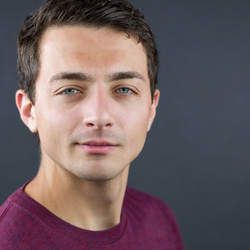
Dark under-eye bags can wreck an otherwise strong portrait, and heavy-handed fixes usually leave that telltale “plastic” skin. In this video, the focus is removing extreme eye bags in Photoshop while keeping texture believable at 100%.
Coming to you from Unmesh Dinda with PiXimperfect, this practical video lays out a retouching workflow that prioritizes what you actually see, not what the color is trying to convince you of. Dinda starts by killing color distraction with a solid color adjustment layer set to the Color blend mode, so you judge brightness changes without getting pulled around by redness and shadow tones. That alone nudges you toward cleaner decisions, especially when the under-eye area has both darkness and uneven color. Then he builds a simple dodge-and-burn setup: a blank layer in Soft Light, a soft round brush, and very low flow around 1% so every stroke stays gentle. You get a method that can be slow, but it’s hard to accidentally smash texture when you’re working in tiny increments.
The interesting part is how little the setup matters compared to how you paint. Dinda is blunt about it: the steps are simple, the brushwork is the hard part, and the quality lives or dies in the repetition. The Soft Light dodge-and-burn layer becomes your main control surface, with quick toggling between black and white (and default colors) to build a smoother transition under the eye instead of a blurry smear. He also extends the same approach to the rest of the face to even out small bumps in brightness, which is where many people either overdo it or quit too early. The payoff he’s chasing is a result that still holds up when you zoom in, so pores and fine detail don’t collapse into a flat patch.
After the brightness work, the video shifts to the part that trips people up: color drift. Once you’ve brightened a shadowy area, it often looks gray, red, or just “off,” even if the luminosity is now right. Dinda fixes that with a new blank layer set to the Color blend mode, then paints sampled skin color back into the problem zones at a higher flow, roughly 6% to 8%. He calls out practical settings that affect sampling reliability, like using a 3x3 sample size and sampling from the right layer stack, and he shows how small saturation tweaks can keep the correction from turning too intense. If you’ve ever gotten the tone right but ended up with weird under-eye patches that look makeup-heavy, this section is the one to pay attention to. Check out the video above for the full rundown from Dinda.



 English (US) ·